

Resetting your password
If you forgot your password, SUQO sends a 6-digit reset code to your registered phone number. The reset is a two-step flow: request the code, then set a new password.
Step 1 — Request a reset code
- On the login screen, click Forgot password?
- Enter the 10-digit phone number on your account.
- Click Send code.
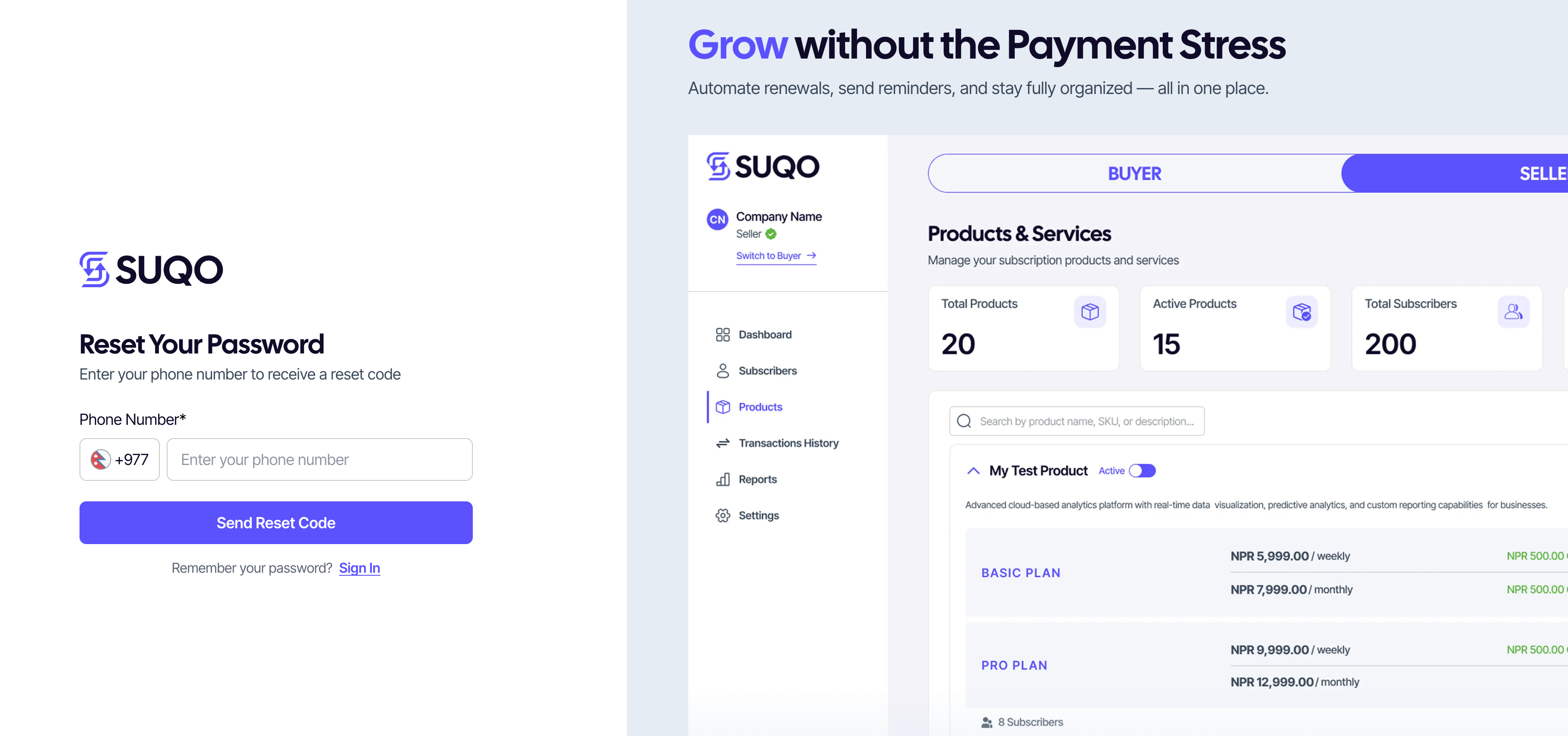
SUQO sends a 6-digit code by SMS. If you don't get one within 2 minutes, click Resend code.
Step 2 — Enter the code and set a new password
- Type the 6-digit code into the verification field.
- Enter your new password (at least 8 characters).
- Re-enter it under Confirm password.
- Click Reset password.
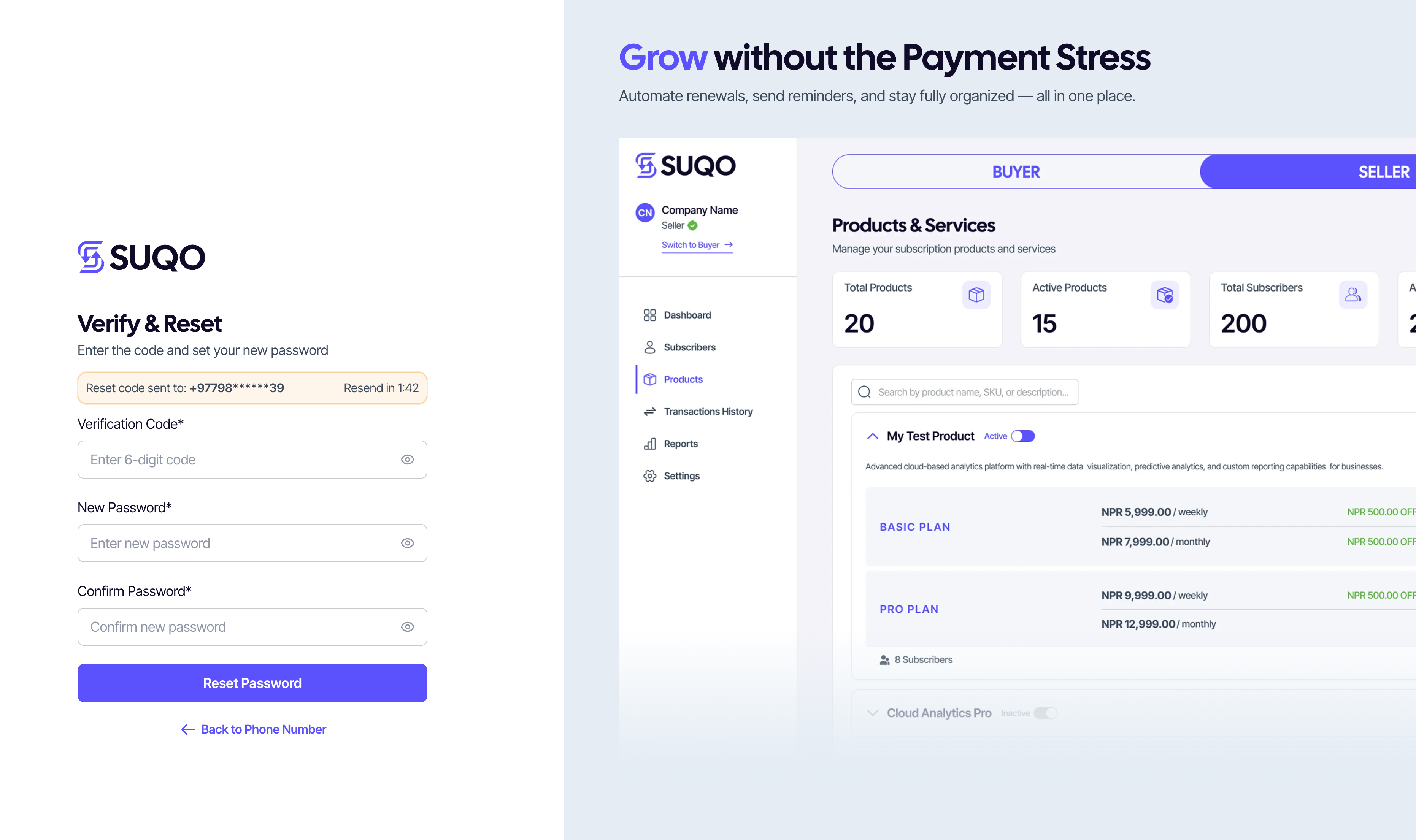
After reset
You're sent back to the login screen with your new password. Sign in normally.
Common issues
- "Invalid code" — codes expire if not used quickly. Click Resend and try again.
- "Passwords don't match" — the two password fields must be identical, character for character.
- Not getting the SMS — wait the full 30 seconds for the first attempt; carriers occasionally delay delivery.
Security note: Reset codes are sent only to your registered phone number. If you no longer have access to that number, contact SUQO support — only the account owner can change the registered phone.