

Transactions
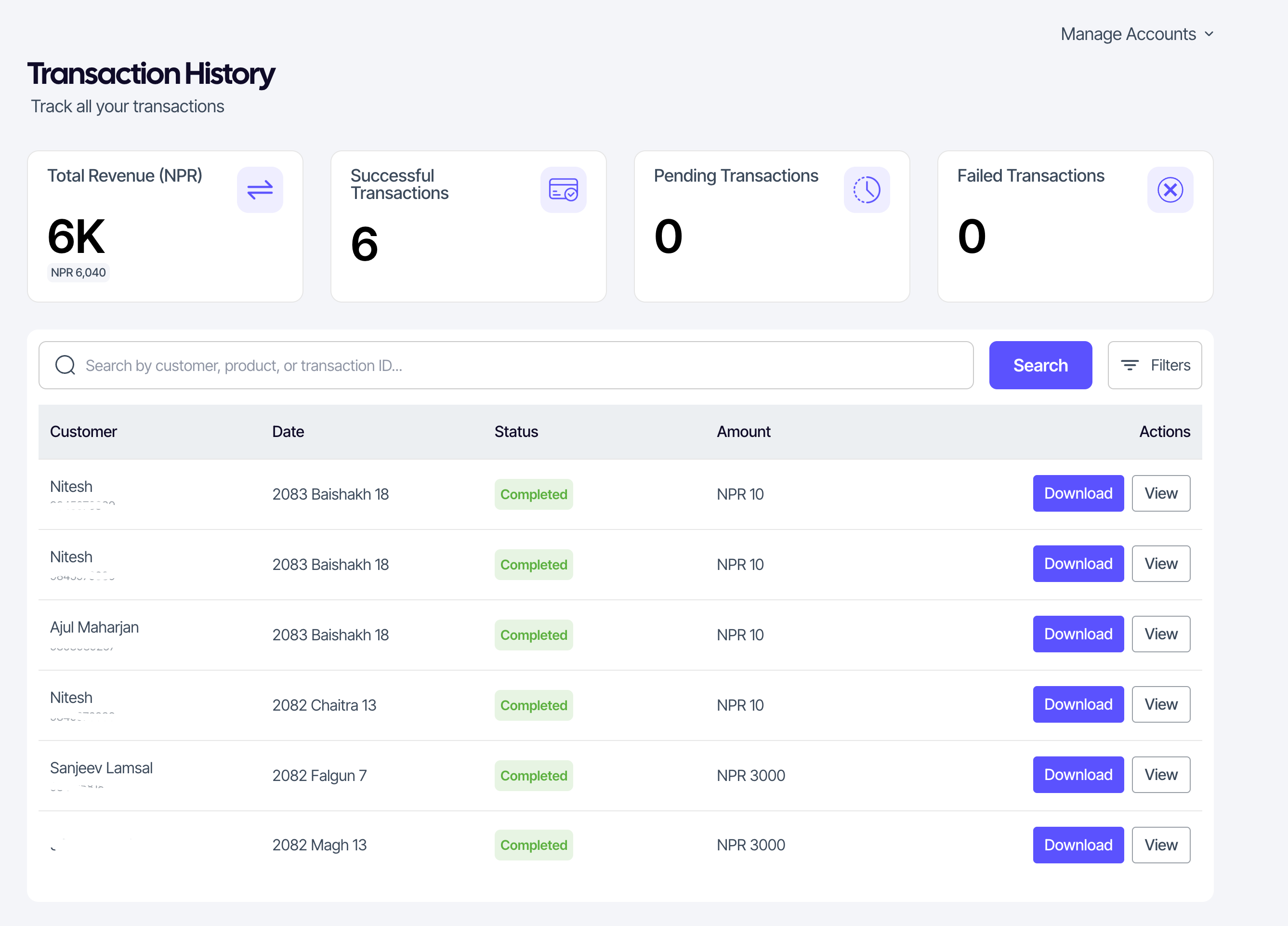
Every payment that touches your account — successful, pending, failed, online, or manually recorded — is in the transactions list. Use it to reconcile, download receipts, and answer customer questions about a specific charge.
The analytics row
Above the list, four cards summarise activity over the current view:
- Total revenue — successful payments only, in NPR.
- Successful transactions — count.
- Pending transactions — count.
- Failed transactions — count.
Searching and filtering
- Search by customer name, product name, or transaction ID.
- Status — completed, pending, or failed.
- Subscription plan — narrow to one specific plan.
- Date range — pick dates with the calendar (custom range supported).
Columns in the list
| Column | Notes |
|---|---|
| Customer | Name of the customer to whom the transaction associated with. |
| Date | Date of transaction |
| Status | Coloured badge: Completed, Pending, Failed. |
| Amount | Always NPR. |
| Actions | Download receipt · View details |
Transaction details
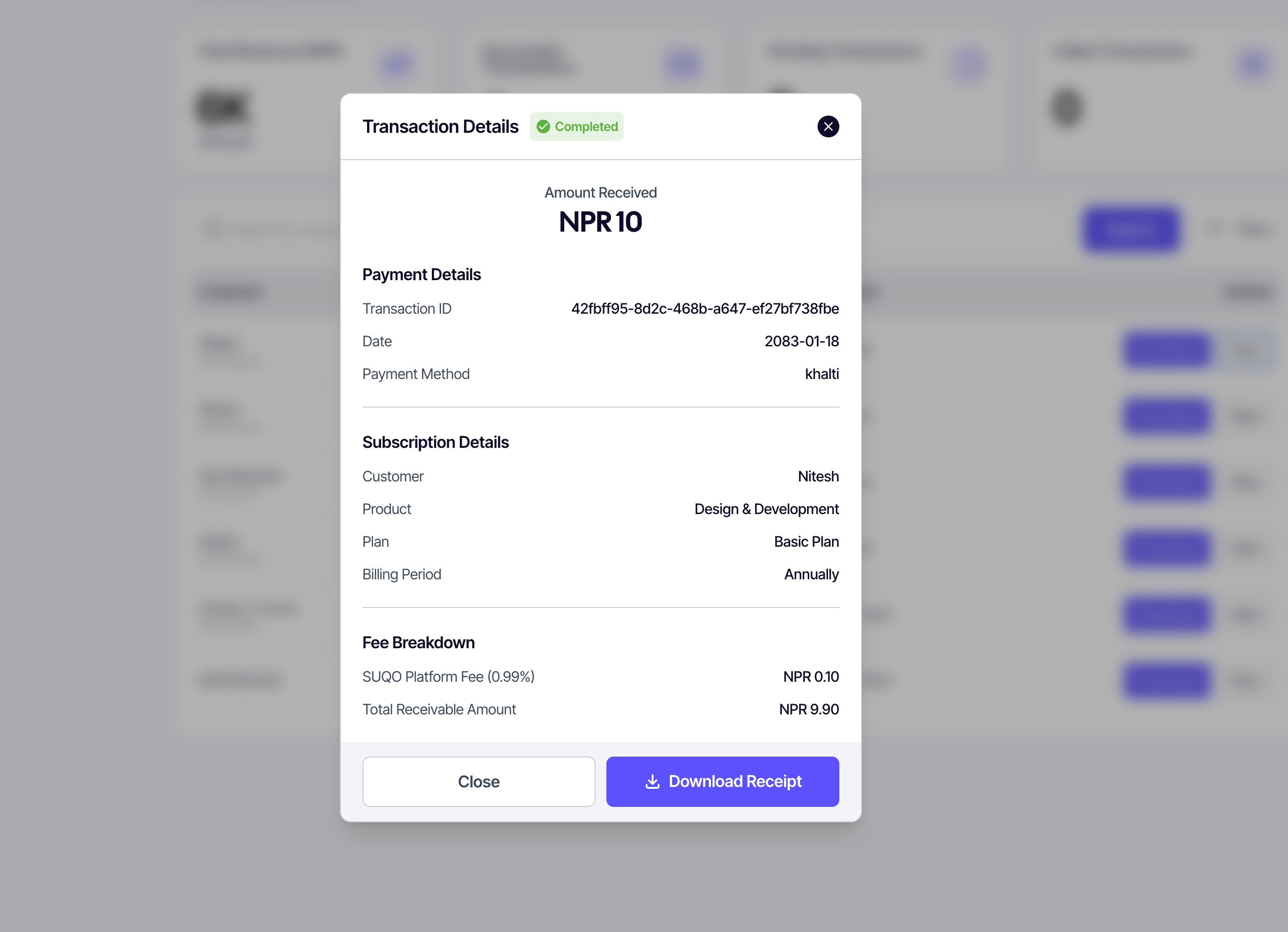
Clicking View on a row opens a details modal with:
- Reference ID (transaction ID).
- Amount in NPR.
- A date.
- Payment method: eSewa / Khalti (Wallet, Mobile Bank, Connect IPS) / Cash.
- Subscription, plan, billing period.
- Status.
Downloading receipts
The Download receipt button on a row downloads a PDF receipt for that transaction. Forward it to customers when they ask for proof of payment.
Tip: Pending transactions usually settle within minutes for wallet payments; if one is stuck for more than a few hours, check the provider's status and your payment methods before contacting support.