

Payout
Payout is how you withdraw the money you've collected through SUQO into your own bank account. The Payout page shows how much is available to withdraw, where it will be sent, and a history of every request. Need help? Contact [email protected] or call +977 9712007405.
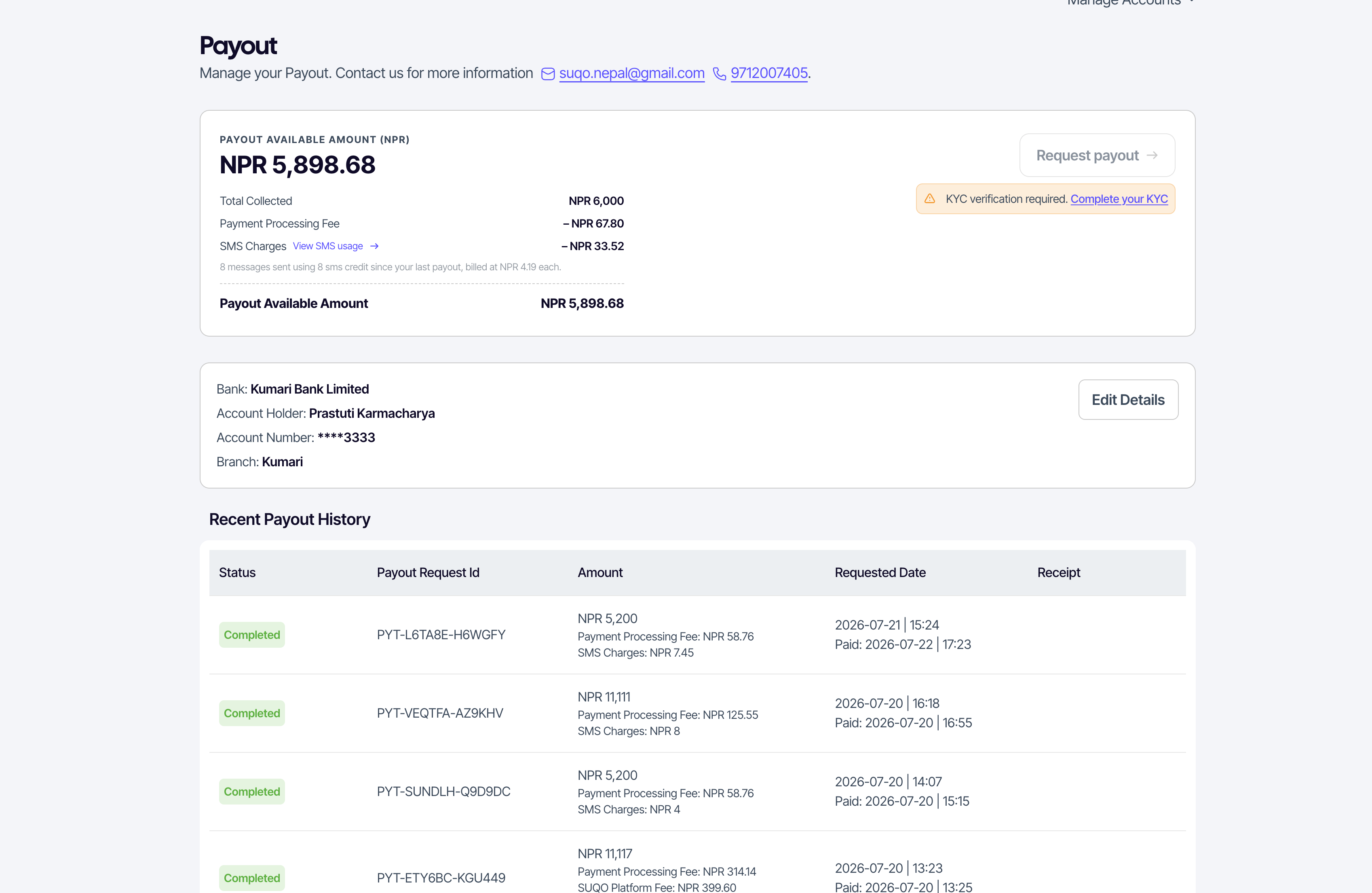
Available amount vs. total due
At the top you'll see two numbers:
| Field | What it means |
|---|---|
| Payout Available Amount (NPR) | The amount you can withdraw right now — collected earnings that have cleared. |
| Total Due Amount | The total amount owed to you across all due transactions. |
The Payout Available Amount is shown as a breakdown so you can see exactly what was deducted:
| Line | What it means |
|---|---|
| Total Collected | The gross amount collected from your due transactions (e.g. NPR 6,000). |
| Payment Processing Fee | The wallet/gateway processing fee, deducted (e.g. – NPR 67.80). |
| SMS Charges | The cost of SMS credits used since your last payout, deducted (e.g. – NPR 33.52). A View SMS usage link opens the SMS Usage report, and a caption below shows the detail — e.g. 8 messages sent using 8 sms credit since your last payout. This line only appears when you have SMS charges. |
| Payout Available Amount (NPR) | What remains after the deductions — the amount you'll actually receive (e.g. NPR 5,898.68). |
Your bank account
Payouts go to the bank account shown on this page:
- Bank — the name of your bank.
- Account Holder — the name on the account.
- Account Number — shown masked (e.g.
****8398) for security. - Branch — your bank branch.
Click Edit Details (or Add bank account if you haven't set one up) to open the bank form. Fields:
- Bank Name — pick your bank from the list.
- Account Holder Name.
- Account Number — must be between 16 and 20 digits.
- Branch.
Bank accounts must be verified before use. After you save (or edit) the account, SUQO sends a 6-digit verification code by SMS and opens a Verify Bank Account dialog. Enter the code to confirm the account. Until it's verified the account shows a Verification pending notice with a Verify Now button, and you can't request a payout. If you close the dialog you can resume verification later from that notice; use Resend inside the dialog if the code doesn't arrive.
You must have a verified bank account on file before you can request a payout.
Requesting a payout
The button next to the available amount changes based on your state:
| Button | Meaning |
|---|---|
| Add bank account | No bank account yet — set one up first. |
| Verify bank account | A bank account is saved but not yet verified — sends a new SMS code so you can confirm it. |
| Request payout | Ready to withdraw. |
| Payout in progress | A previous request is still being processed — you can't start another until it finishes. |
Requesting is only possible when your available amount is at least NPR 5,000 (the minimum payout), your KYC is verified, your bank account is verified, and no request is already pending.
Clicking Request payout opens the Confirm Payout Request dialog, which shows:
- Payout To — your bank name, branch, and account number.
- The number of transactions included in the request.
- The amount breakdown — Total Collected, the SMS Charges deduction (when any), ending with the Payout Available Amount you'll actually receive.
SMS charges
SUQO's automated reminders are billed pay-as-you-go and settled at payout. The amount breakdown on this page includes an SMS Charges line — the cost of every SMS credit used since your last payout — which is deducted along with the payment processing fee before arriving at your Payout Available Amount. Click View SMS usage on that line to open the SMS Usage report and see exactly what was sent.
Recent Payout History
Every request you've made appears in your recent payout history:
| Column | What it shows |
|---|---|
| Status | Completed, Pending, or Failed. |
| Payout Request Id | A unique reference (e.g. PYT-FZVZBQ-GH5RSF) — quote this if you contact support. |
| Amount | The amount of the payout request. |
| Requested Date | When you made the request. Completed rows also show the Paid date and time. |
| Receipt | A Download button, available once a payout is Completed and a receipt exists. |
Fees
For the fee breakdown, see suqo.ai/pricing.