

Customer details
The customer detail page is where you record a payment, change a billing cycle, add another subscription, or cancel one. It opens when you click View on a row in the customers list.
The customer header
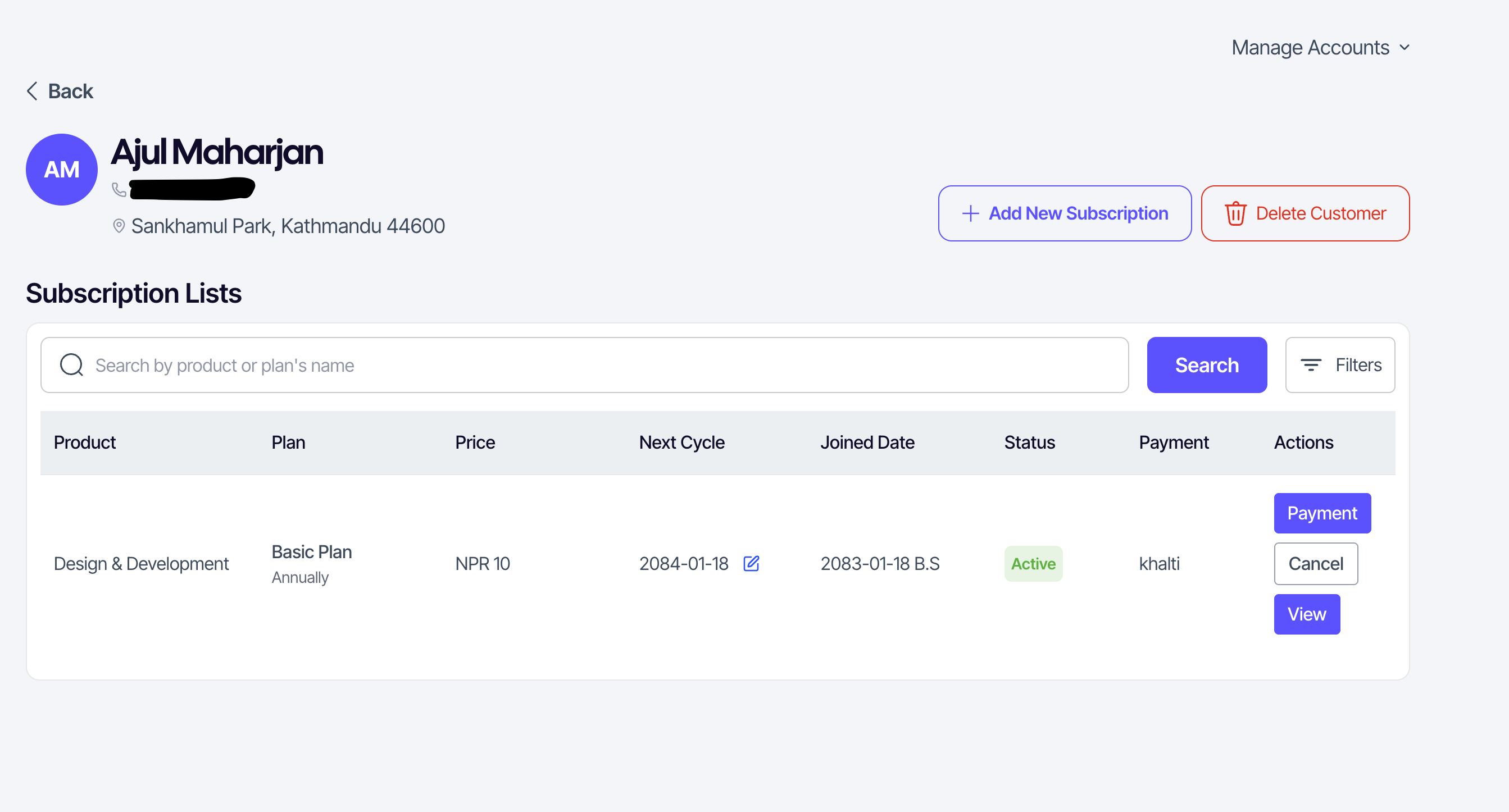
The top of the page shows the customer's avatar, name, phone number, and address. From here you can also delete the customer entirely (only available when they have no active subscriptions).
The subscription list
Below the header is a list of every subscription this customer has had with you. Each entry shows:
- Product name and plan name.
- Price in NPR.
- Next billing cycle date — editable inline.
- Joined date and current status (Active, Grace, Inactive).
Per-subscription actions
| Action | When it appears | What it does |
|---|---|---|
| Record payment | Active, Grace, Inactive | Logs a payment manually — for cash, bank transfer, or anything not done through our system. |
| Cancel subscription | Active, Grace | Stops future billing. Existing transactions are kept. |
| Delete subscription | Inactive only | Removes the subscription record. Cannot be undone. |
| View details | Always | Opens the subscription's transaction details in a Modal. |
Recording a payment
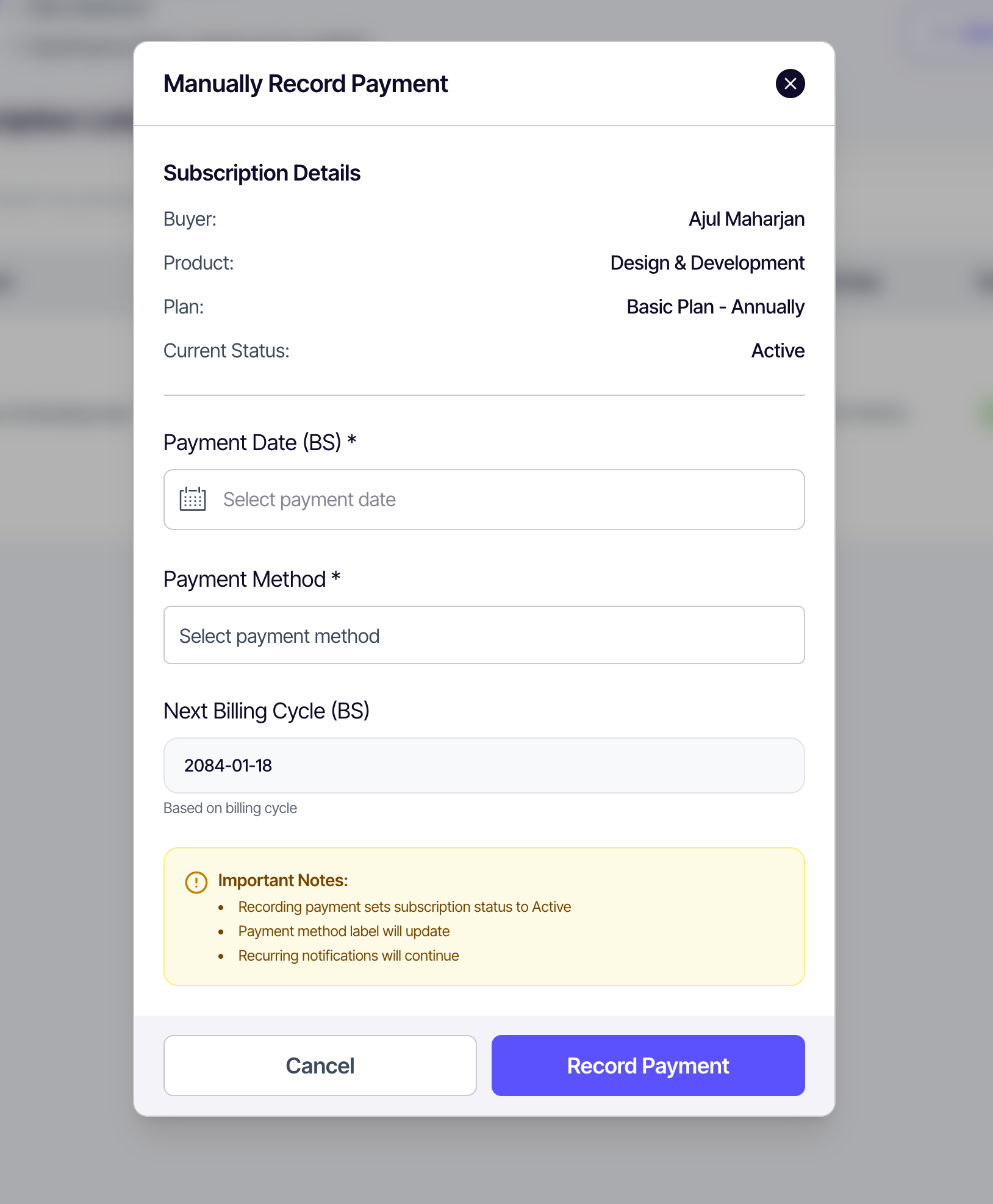
- Click Record payment on the subscription row.
- Pick the payment date using the calendar.
- Select the payment method — cash, bank transfer, eSewa (manual), Khalti (manual), or ConnectIPS (manual).
- SUQO auto-calculates the next billing cycle based on the plan frequency.
- Click Record Payment.
The payment appears in Transactions with a "manual" badge.
Editing the next billing cycle
Click the date next to Next billing on a subscription row. A date picker opens; pick a new date and save. Use this when a customer pre-pays, skips a cycle, or you're correcting a date.
Adding another subscription to the same customer
Click Add subscription at the top of the page, then pick a product and plan and set a start date. Use this when one customer subscribes to more than one of your products (e.g. gym + personal training).
Cancelling and deleting
- Cancel — stops future cycles but keeps history. SUQO confirms before applying.
- Delete — only on Inactive subscriptions. Confirmation required; cannot be undone.