
Offers & discounts
Offers reduce a plan's price for a limited time — useful for festive promos, launch discounts, or referral campaigns. An offer is attached to a single plan and billing period combination and lives only between a start and end date.
Creating an offer
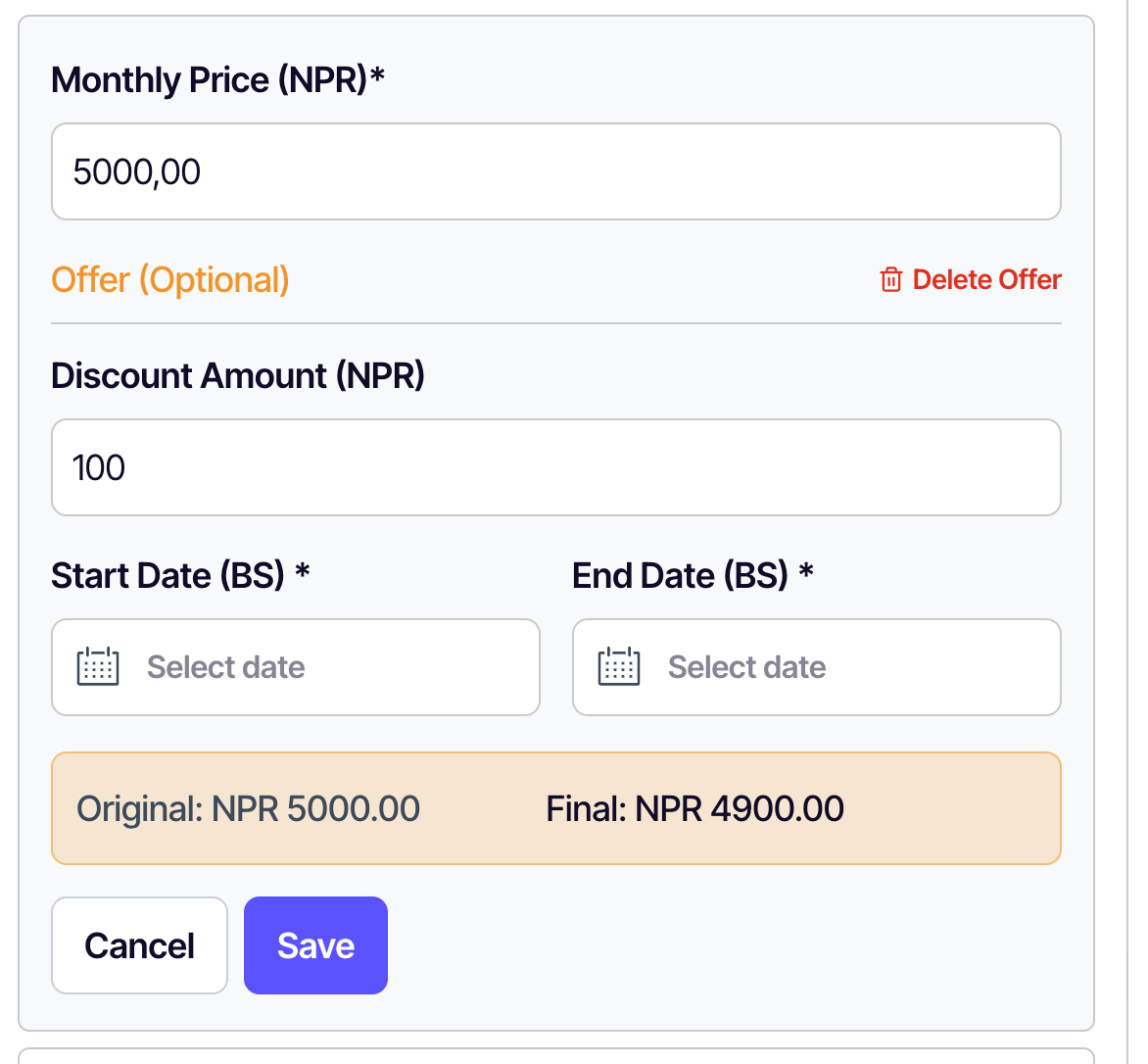
An offer is just a Discount Amount with a date range on a billing period — set it right in the plan editor (no separate offers screen).
- Open the product in Products and edit the plan / billing period (or set it while adding a product — see Products & plans).
- Switch on the Discount Amount (NPR) toggle.
- Enter the discount amount in NPR (taken off the plan price). It must be at least NPR 50 and less than the plan price.
- Pick the Start Date and End Date for the offer.
- Click Save.
How customers see an offer
While the offer is active, the product page shows the discounted price alongside the original price (struck through). New checkouts charge the discounted amount automatically. Once the validity ends, the price reverts.
Editing or removing an offer
- Edit the dates or discount amount from the offer's edit button on the plan row.
- Remove an offer to revert to the regular price immediately, even before the end date.
- Existing customers on a subscription created during an offer keep their next renewal price as recorded — see Customer details for per-subscription overrides.
What "active offers" means in stats
The product list's stats row shows Active offers — that's a count of offers whose date range includes today. It updates daily as offers start and end.
Tip: Stack a plan-specific share link with an offer for a clean campaign —
copy the plan link from Products & plans, send it during the offer
window, and customers land at the discounted price.