

Payment methods
Payment methods control which options your customers see at checkout, and the order they appear in. You don't need a merchant account with any provider — SUQO holds the gateway integrations and enables the methods available to your account.
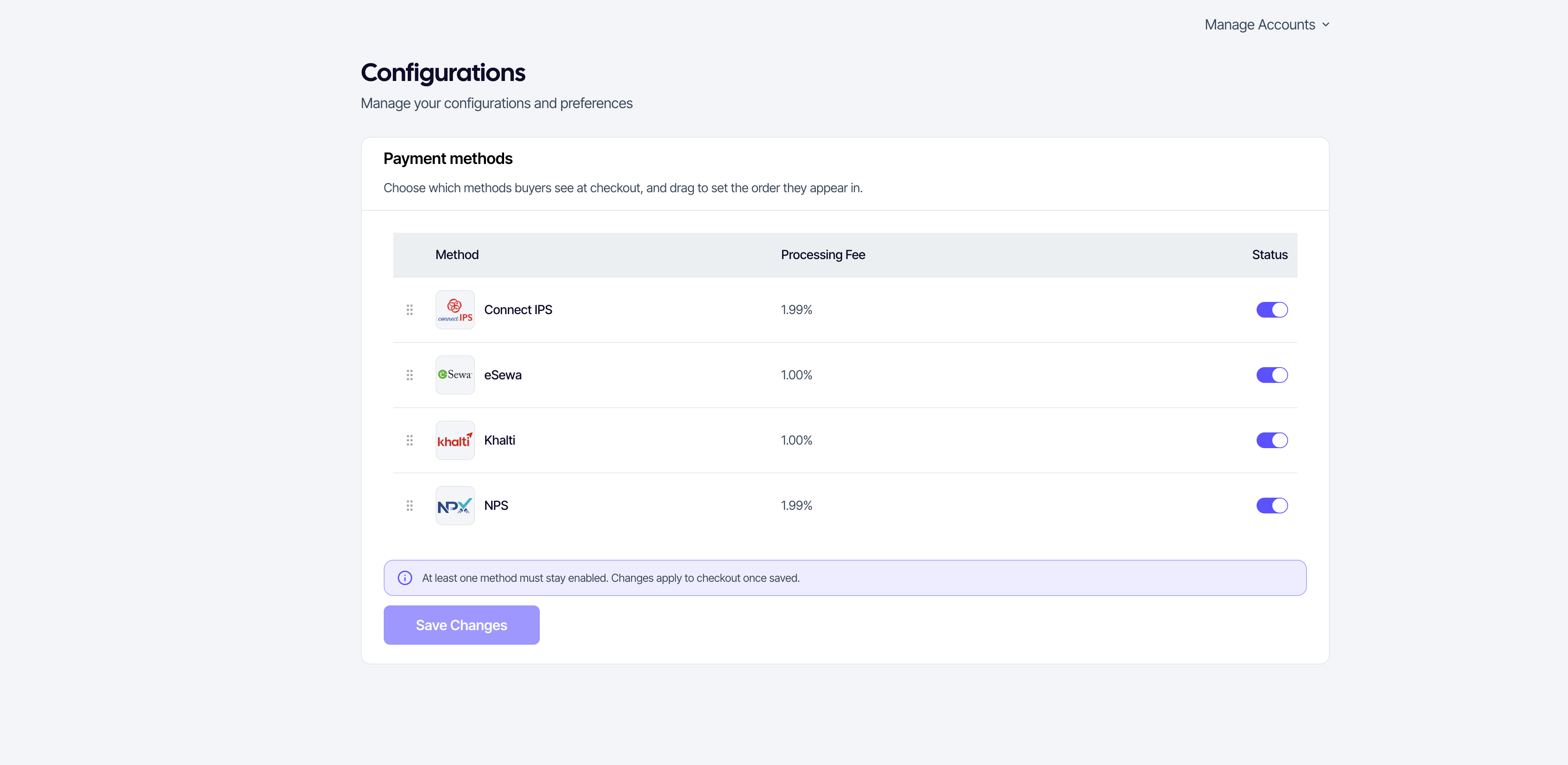
The table
Open Configuration → Payment methods. Each row is one method available to your account:
| Column | Description |
|---|---|
| Method | The provider's logo and name — eSewa, Khalti, ConnectIPS, or NPS. |
| Processing Fee | The percentage that provider charges per transaction. A dash means no fee is published for that method. Current rates are at suqo.ai/pricing. |
| Status | A toggle. On means customers see it at checkout; off means they don't. |
Cash and bank transfer aren't listed here. They're offline methods you record yourself from the customer's page, so there's nothing to switch on or off — see Customer details.
Turning a method on or off
Flip the Status toggle, then click Save Changes. Nothing is saved until you do.
At least one method must stay enabled. If you try to switch off the last one, SUQO blocks it and tells you why — otherwise customers would reach a checkout with no way to pay.
Switching a method off doesn't affect transactions already in progress. They finish under the configuration that was live when they started.
Reordering methods
Drag a row by its handle on the left to move it up or down. The order you save is the order customers see at checkout, top to bottom — so put whichever method you'd prefer them to use first.
You can drag with the keyboard too: focus a row's handle, then use the arrow keys.
Saving
Save Changes stays disabled until you actually change something, and enables as soon as a toggle or the order differs from what's saved. If you navigate away with unsaved changes, SUQO warns you first.
Changes apply to new checkouts as soon as they save.
If the page is empty
An empty table means no payment methods are enabled for your account yet. Contact support and they'll add them.
What customers see
Your enabled methods appear as selectable tiles on the payment step of checkout, in your saved order.
NPS asks for one extra choice: after picking NPS, the customer chooses their bank or wallet from a searchable list (the same institution can appear more than once when it offers both e-banking and mobile banking — the channel is shown in brackets). If that list can't be loaded, the customer is told to pick a different method; it doesn't block the rest of checkout.