

Products & plans
A product is the thing you sell — a gym membership, a coaching course, a maintenance contract. Each product has one or more plans, where plan is list of a billing period + price combination (for example, "monthly NPR 1,500" or "annual NPR 16,000") .
The product list
Open Products from the left menu. You'll see a list of every product on your account along with a top row of stats: total products, active products, total customers, and active offers.
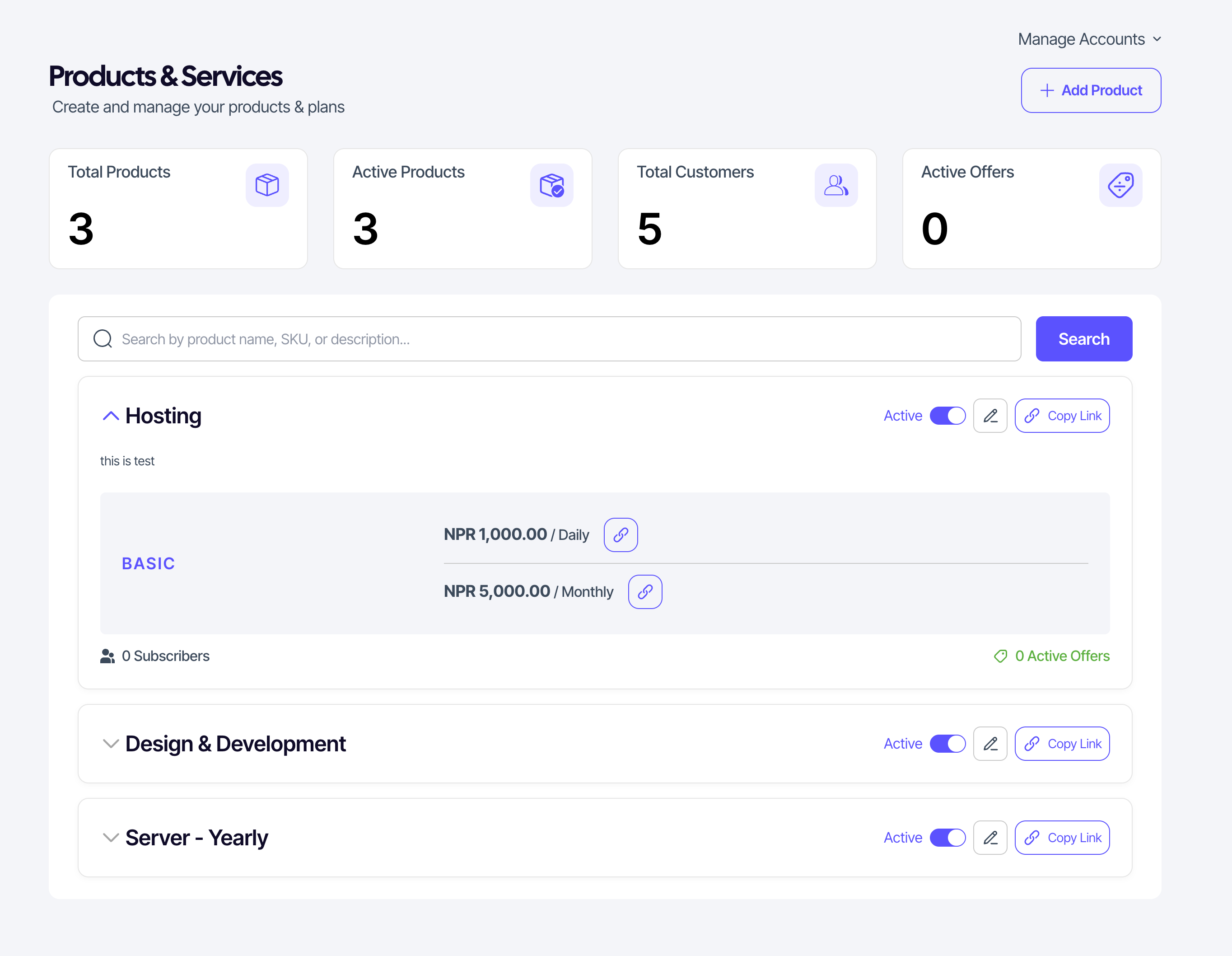
- Search by product name or description.
- Each product row expands into an accordion showing its plans and pricing.
- The copy link button (visible only when the product is active) copies a public product URL you can share with customers. Also, copy icons on the right side of the billing period directly selects that plan and billing period combination for your customers
Adding a product
Click Add product in the top-right of the list to open the Add New Product page. It has four sections down the left and a settings rail on the right; click Add Product when you're done.
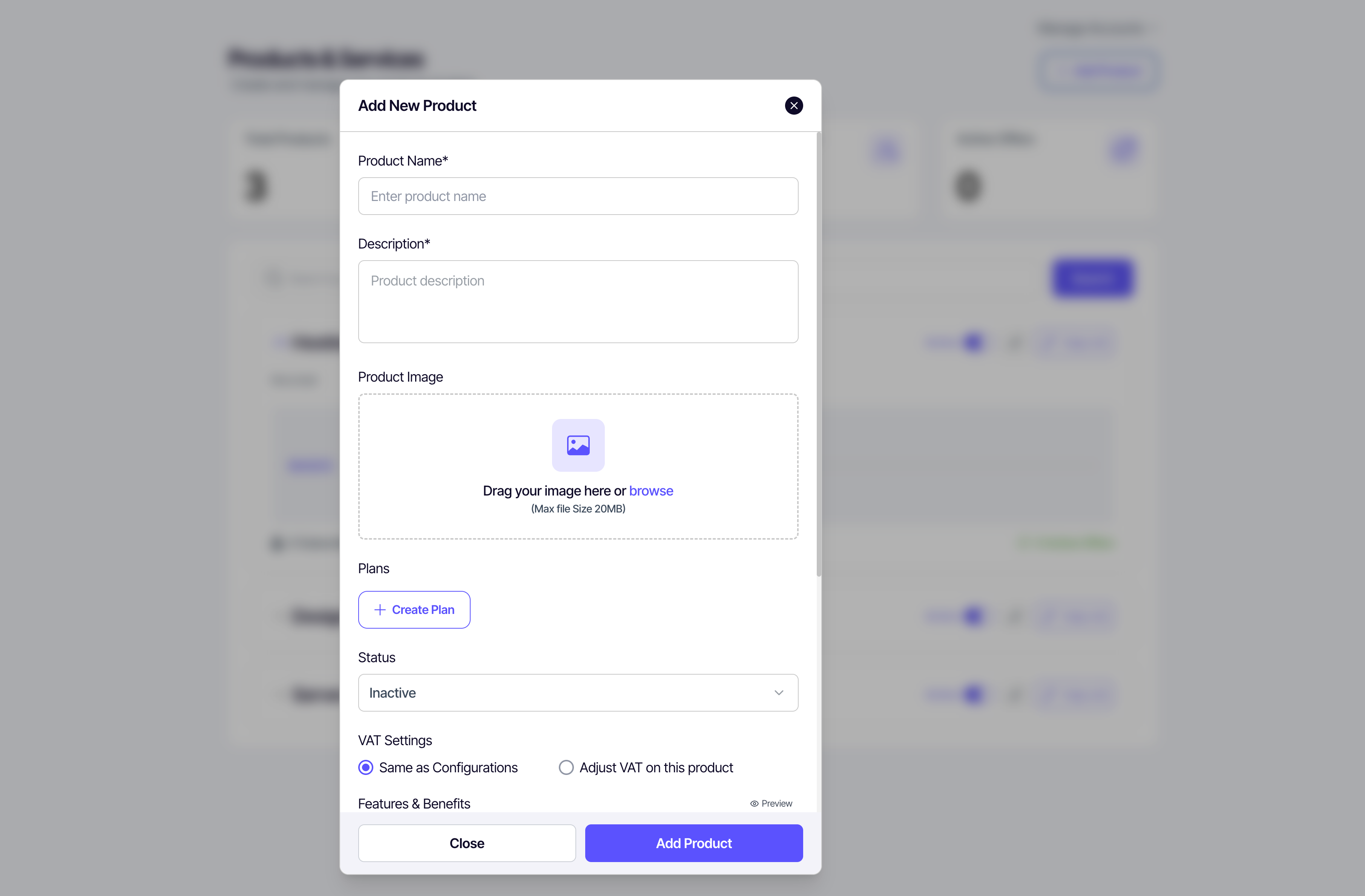
Product identity
- Product Name — what customers see (required).
- Product Short Description — a rich-text editor (bold, italic, lists, links) with a live Preview, up to 200 characters. Shown on the product card.
- Product Image — drag & drop or browse. Image only, max 20 MB.
Subscription plans — Simple vs Tiered
Toggle between two plan modes at the top of the Subscription Plans section:
| Mode | Use when |
|---|---|
| Simple | One set of billing periods for the product — add each billing period with its price. |
| Tiered | You want several named plans (e.g. "Basic", "Premium"), each with its own billing periods. Tiered lets you offer multiple prices for the same billing period in separate plans. |
Simple: for each billing period, pick a Billing Period (daily, weekly, bi-weekly, monthly, quarterly, semi-annual, or annual), enter Price (NPR), and optionally switch on Discount Amount (NPR) to set a discount. Click Save, then + Add Billing Period to add more.
Tiered: create a named Plan (with its own description), then add one or more billing periods to it using the same Billing Period / Price / Discount fields. Use + Create New Plan to add more tiers. A plan groups different billing periods together — for example "Monthly" and "Yearly" billing periods under a "Premium" plan.
Price and discount limits
| Rule | Applies to |
|---|---|
| Minimum NPR 50 | Both the price and the discount amount |
| Maximum 10 digits | The price (the whole-number part — decimals aren't counted) |
| Discount must be less than the price | The discount amount |
The "cannot exceed 10 digits" message only appears when you try to save, not while you're still typing. A discount that's too long reports as exceeding the price rather than as a digit-count problem, because it's already capped by the price it has to stay under.
 [ Screenshot — tiered plans ]
Features & benefits, terms & conditions
Two more rich-text sections (with Preview): Features & Benefits, shown on the public product page, and Terms & Conditions, which customers accept at checkout.
Status & VAT (settings rail)
- Status — an Active toggle. Inactive products can't be subscribed to and aren't public.
- VAT Settings — choose Same as configurations (use your account-wide VAT) or Adjust VAT on this product (set VAT for this product only).
Product-level VAT
By default a product uses Same as configurations — the account-wide VAT you set under Configure VAT. Choosing Adjust VAT on this product lets you set VAT for this product alone, and the product-level VAT takes precedence over the configuration-level VAT for that product.
Editing or deleting
- Edit a product or plan from its row's edit button. All fields are editable.
- Toggle status — switch a product between Active and Inactive. SUQO confirms before switching off, since inactive products can't be subscribed to.
- Delete — only available for inactive products and plans with no active subscriptions.
Sharing a product
Click Copy product link on an active product to copy its public URL. Anyone with the link can browse plans and subscribe — they'll be prompted to log in or create an account at checkout. You can also copy a plan-specific link that pre-selects a plan and consents during onboarding.