

Sandbox / Test mode
Test mode — also called the sandbox — gives you a complete second copy of your SUQO dashboard, filled with practice data. Create products, add customers, walk a customer through checkout and watch a payment arrive — none of it touches your real business, and no money moves.
Use it to learn the product before you go live, to try a pricing change before committing to it, or to show a colleague how something works.
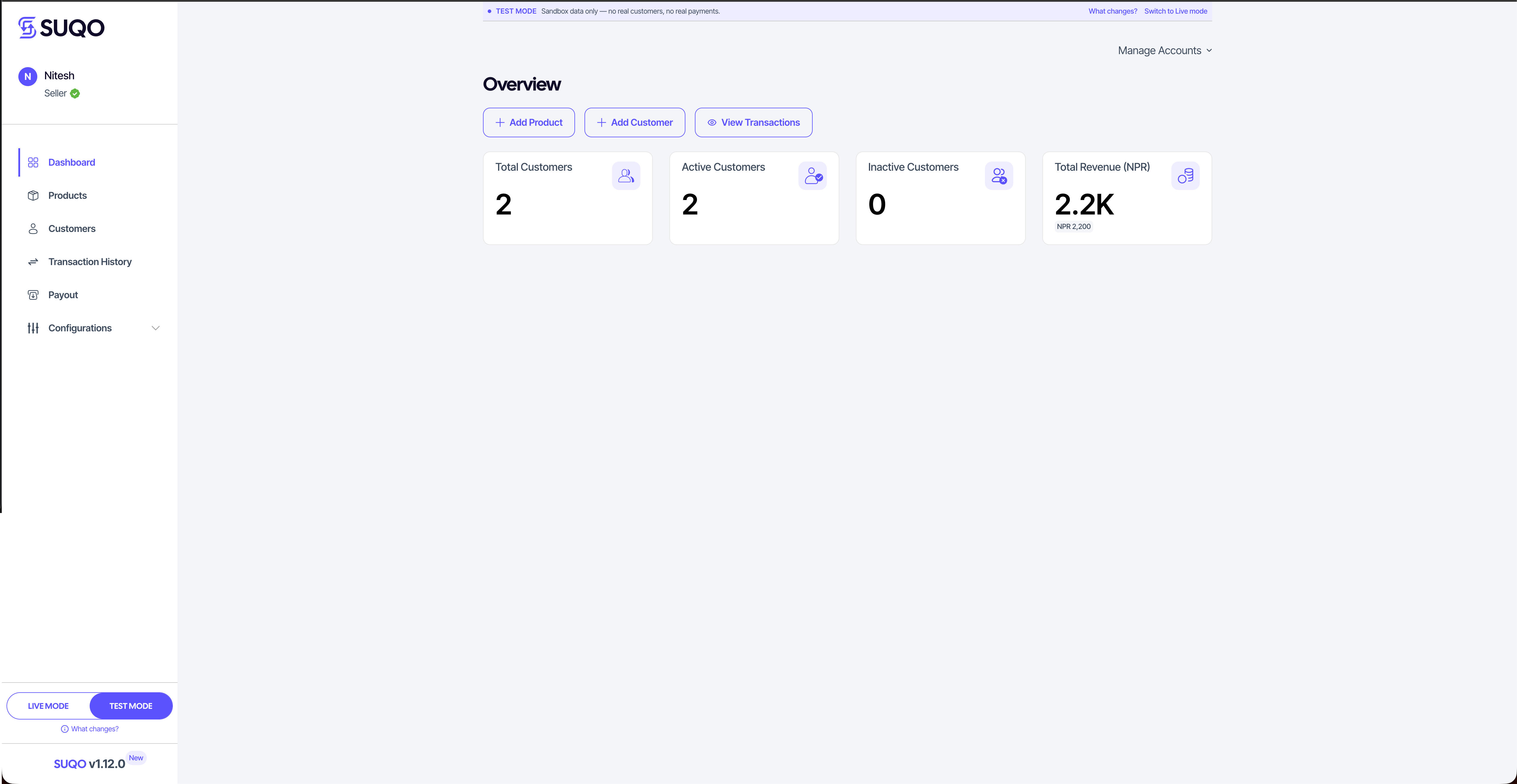
Switching
The Live / Test switch sits in the sidebar, below the menu. Pick Test Mode and the dashboard reloads into your practice environment; pick Live Mode to come back.
Two things to expect when you switch:
- The page reloads and you land on the Dashboard. That is deliberate. A product or customer you were looking at in Live has no equivalent in Test, so returning you to the same page would only show a missing record.
- While Test mode is on, a bar sits at the top of every page saying so, with a What changes? link. If you are ever unsure which environment you are in, look there.
You stay signed in with the same account throughout. There is no second password and nothing separate to sign up for.
What is separate, and what is shared
This is the part worth reading properly. Some of your dashboard switches with the environment; some of it is your account itself and is always live.
| Switches with the environment | Always live |
|---|---|
| Products and plans | Sign-in and your password |
| Customers and subscriptions | Business profile |
| Transactions and receipts | Account settings |
| API key and webhooks | KYC documents |
| Dashboard figures | Email delivery |
So a product you create in Test never appears in Live, and a Test customer is not a real one. But if you edit your business name, that change is real and applies to both — you have one account, viewed two ways.
What behaves differently in Test mode
A checkout OTP is always 123456. No SMS reaches the number entered at a Test-mode checkout, so type 123456 rather than waiting for one. This covers checkout only — signing in is your account, and always live, so a code sent while you sign in is a real SMS and 123456 will not work for it.
Payments are simulated, and SUQO Pay is the only method. A Test-mode checkout offers SUQO Pay's test gateway and nothing else — eSewa, Khalti, ConnectIPS and NPS are Live-only, whatever you have switched on under Payment methods. No card is charged, no wallet is debited, and no subscription really starts.
Email is real. This is the one exception, and the one that catches people out. Emails are genuinely delivered to whatever address is entered, in Test mode exactly as in Live. Use an address you own, and don't put a customer's real address into a practice checkout.
KYC is not required. You can build products and walk a checkout in Test mode before your documents are approved. Live still requires verified KYC to take payments.
What you cannot do in Test mode
Payouts. They move real money to your bank account, so the Payout page is unavailable while Test mode is on and offers to switch you back.
SMS usage. Charges are billed against your live account, so the SMS Usage report is Live-only too.
Sharing a test checkout
A product link copied while in Test mode points at the test storefront, not your live one, so you can safely send it to a colleague to try. They will see a banner telling them the checkout is a test and no payment will be taken.
Because it is a test link, copying it does not count as the "share your product link" step in your setup guide. That step is about sharing a real link with a real customer.
For developers
If you are integrating against the SUQO API, the same environment split applies to your API keys and webhooks: generate them while in Test mode and they belong to the sandbox. See Sandbox in the API reference for the base URL and the rest.