

Browsing & subscribing
When a seller shares a product link with you, the page shows everything about that product — what it includes, what plans are available, and any current discount. From there it's a few clicks to subscribe.
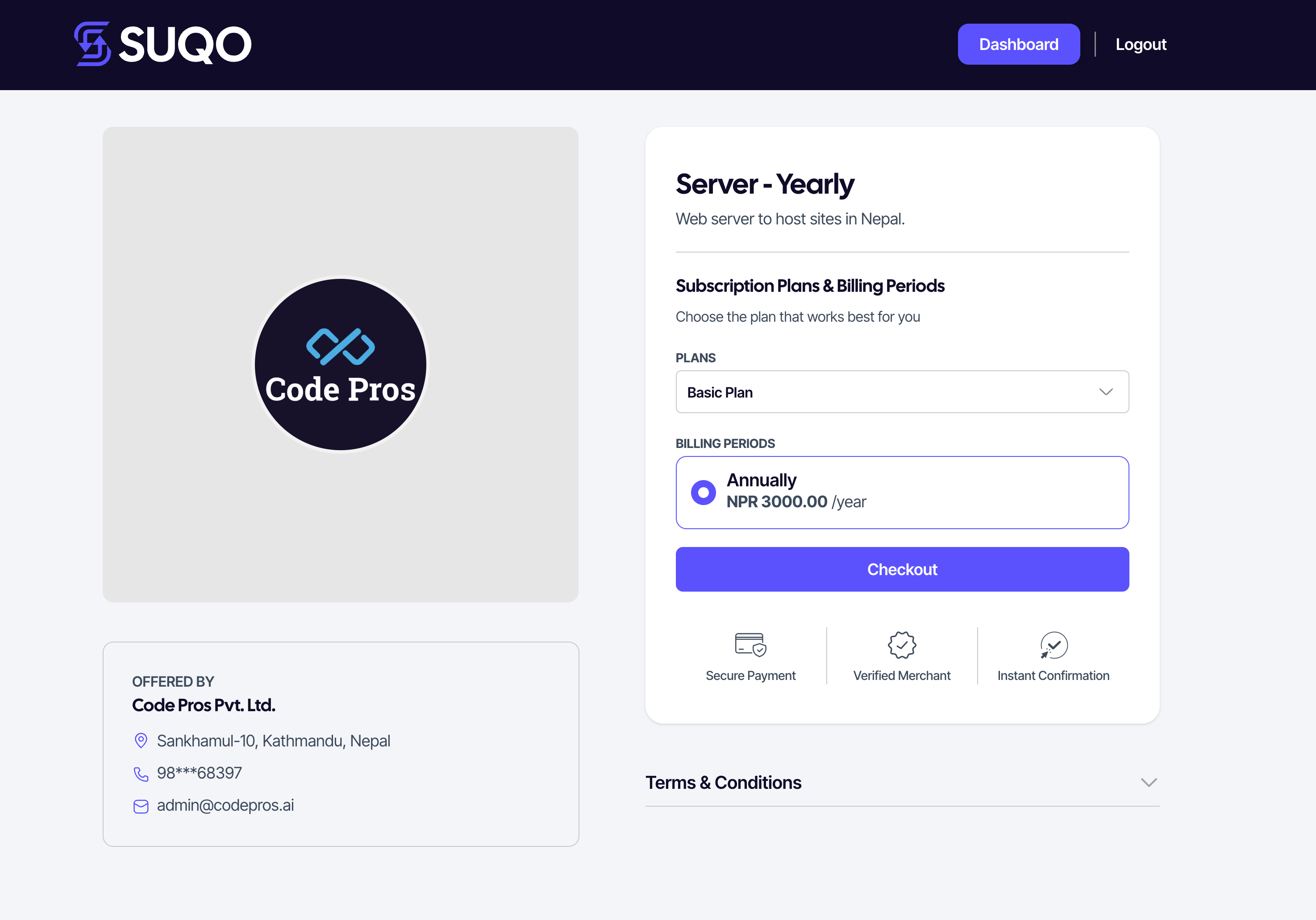
What the product page shows
- Product name, logo, and description.
- Photos and a benefits/features list.
- The seller's terms & conditions (you'll need to accept these to pay).
- A list of plans, each with a billing cycle and price.
- If the seller has an active offer, the discounted price is shown alongside the original (struck through).
Picking a plan
- Read through the plans and pick the one whose billing cycle suits you.
- Click Subscribe on that plan.
- If you're already logged in, you're taken straight to checkout. If not, you'll be asked to log in or sign up first.
Guest checkout (first-time buyers)
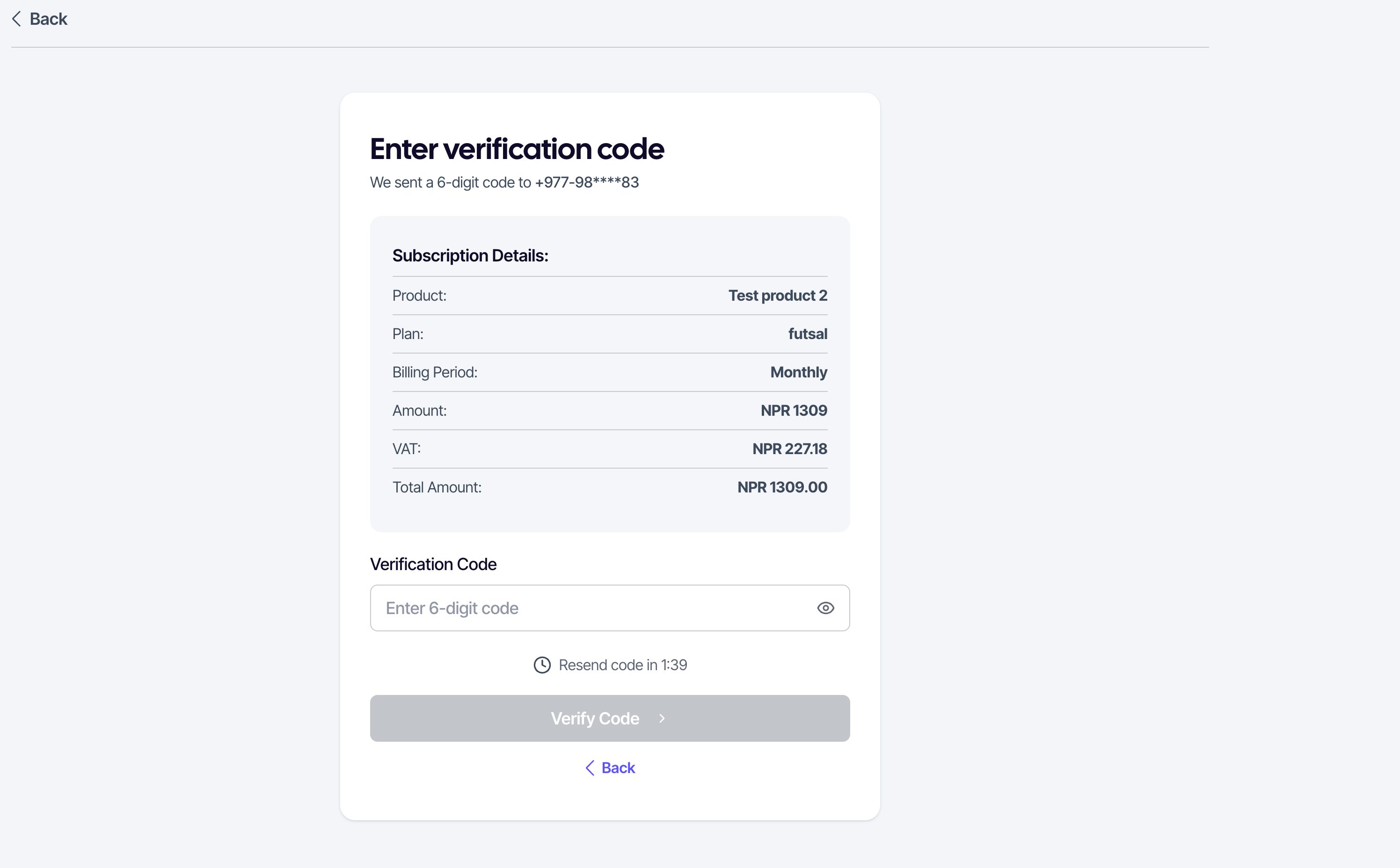
If the seller allows phone+OTP login, you can subscribe without a full registration:
- Enter your phone number.
- Receive a 6-digit OTP and type it into the verification screen.
- Continue to payment.
Accepting terms
Before payment, the page surfaces the seller's terms & conditions. Tick the consent checkbox to enable the Pay button. The next page is the wallet selector — see Making payments.
Logged-in subscribers
If you already have a SUQO account, the wallet selector appears immediately and uses your stored preferences.
Tip: If the seller shared a plan-specific link, the product page opens with that plan pre-selected and consent pre-ticked — you can go straight to payment.